How to Transform Your TV's Picture Quality: 6 Essential Adjustments for a Premium Experience
Introduction
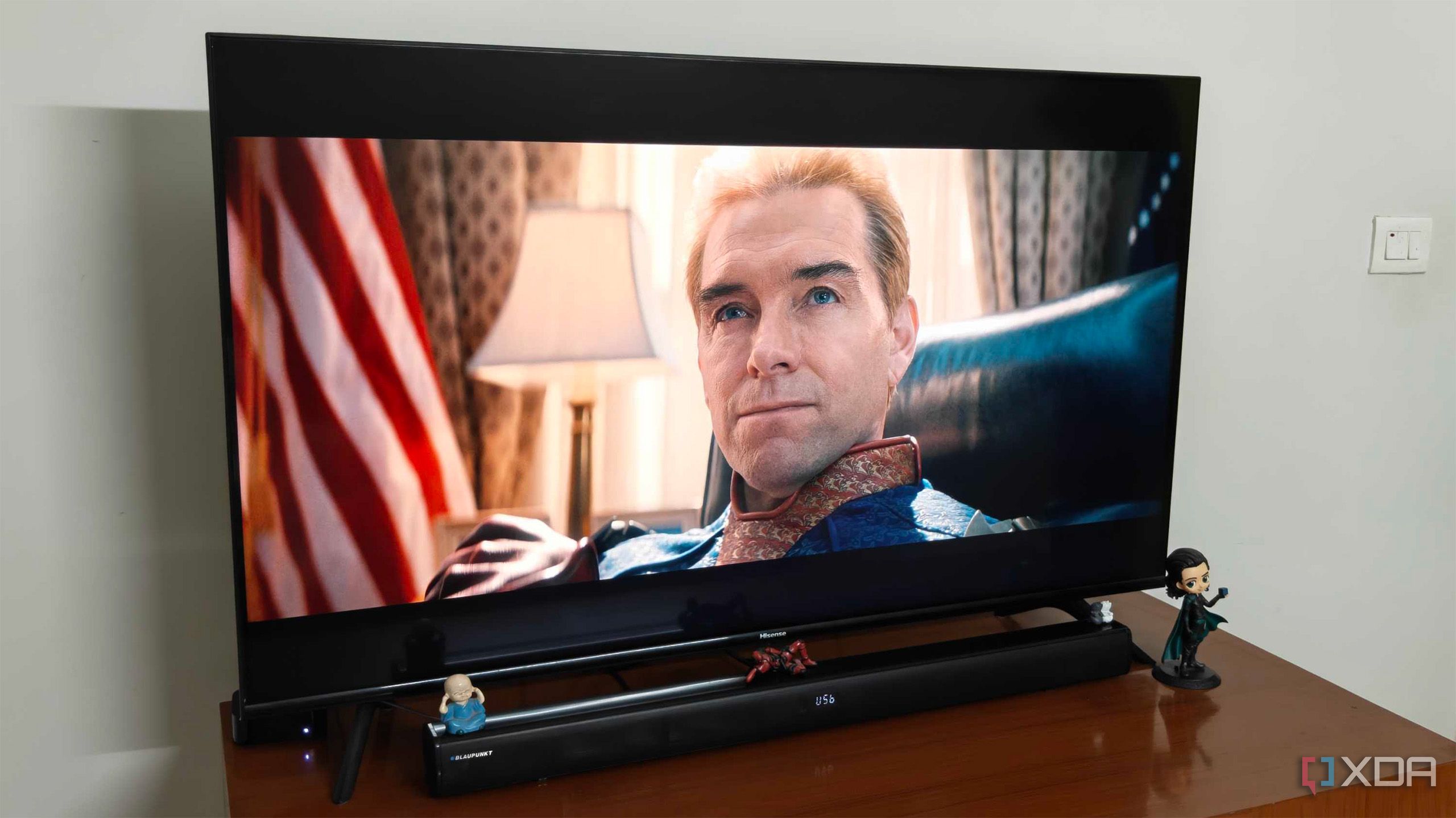
You’ve just unboxed a shiny new TV—maybe it’s a QLED, Mini-LED, or OLED model. You plug it in, and the picture looks… okay, but not amazing. That’s because most televisions are set to “store demo” mode out of the box, with overly bright, saturated, and motion-enhanced defaults. To get that true premium feel, you need to tweak a handful of key settings. This guide walks you through six adjustments that will transform your viewing experience, making any TV look like it cost twice as much.
What You Need
- TV remote control (or universal remote with access to picture settings)
- Calibration disc or test patterns (optional, but helpful for fine-tuning; free patterns are available on YouTube)
- A dark or dimly lit room for accurate evaluation
- Patience—each adjustment should be made one at a time while you observe the result
Step-by-Step Guide
Step 1: Switch to a Filmmaker or Movie Picture Mode
The factory default is usually “Standard” or “Vivid,” which cranks up brightness, contrast, and color to grab your attention in a bright showroom. But those settings crush blacks, wash out skin tones, and add an artificial blue tint. Go to your TV’s picture settings menu and select Filmmaker Mode, Movie, Cinema, or Expert (names vary by brand). This immediately drops brightness to a more realistic level, disables motion smoothing, and sets color temperature closer to the D65 standard (a warm 6500K). You’ll see more detail in shadows and a natural, film-like look.
Step 2: Adjust Brightness and Backlight
Once you’re in a cinema-accurate mode, it’s time to fine-tune brightness. Brightness controls black level—not overall light output. Too high and blacks turn gray; too low and you lose shadow detail. Use a test pattern (or a dark scene with subtle shading) and lower the brightness until the black parts are truly black, then raise it just enough to see the details in the shadows. For backlight/OLED pixel brightness, set it to your room’s ambient light. In a dark room, 50–70% is usually sufficient; in a bright room, you may need higher. Overdoing the backlight on an LCD can cause blooming and eye strain.
Step 3: Correct Contrast and Gamma
Contrast (or “white level”) determines the peak brightness of white areas. Start around 85–95% of the maximum. Too high, and you’ll clip bright details (clouds become featureless blobs). Use a bright scene with white clouds or a white test pattern with near‑white steps—increase contrast until the steps just start to disappear, then back off slightly. Gamma controls the mid‑tone response. Most TVs look best at a gamma of 2.2 (bright rooms) or 2.4 (dark rooms). Check your TV’s gamma setting and choose 2.2 or 2.4, or if available, a BT.1886 curve (the standard for film).
Step 4: Set Color Temperature to Warm
Color temperature is often set too blue/cool by default. Look for “Color Temperature” or “White Balance” options and select Warm or Warm2 (sometimes labeled as “Expert” or “Low”). This gives whites a slightly yellowish tint that is actually accurate for film mastering. Blue‑ish whites make skin look pale and unnatural. If your TV allows 2‑point or 10‑point white balance adjustment, you can use a calibration disc to zero in on D65, but even just switching to warm will be a massive improvement.
Step 5: Disable Motion Smoothing and Reduce Sharpness
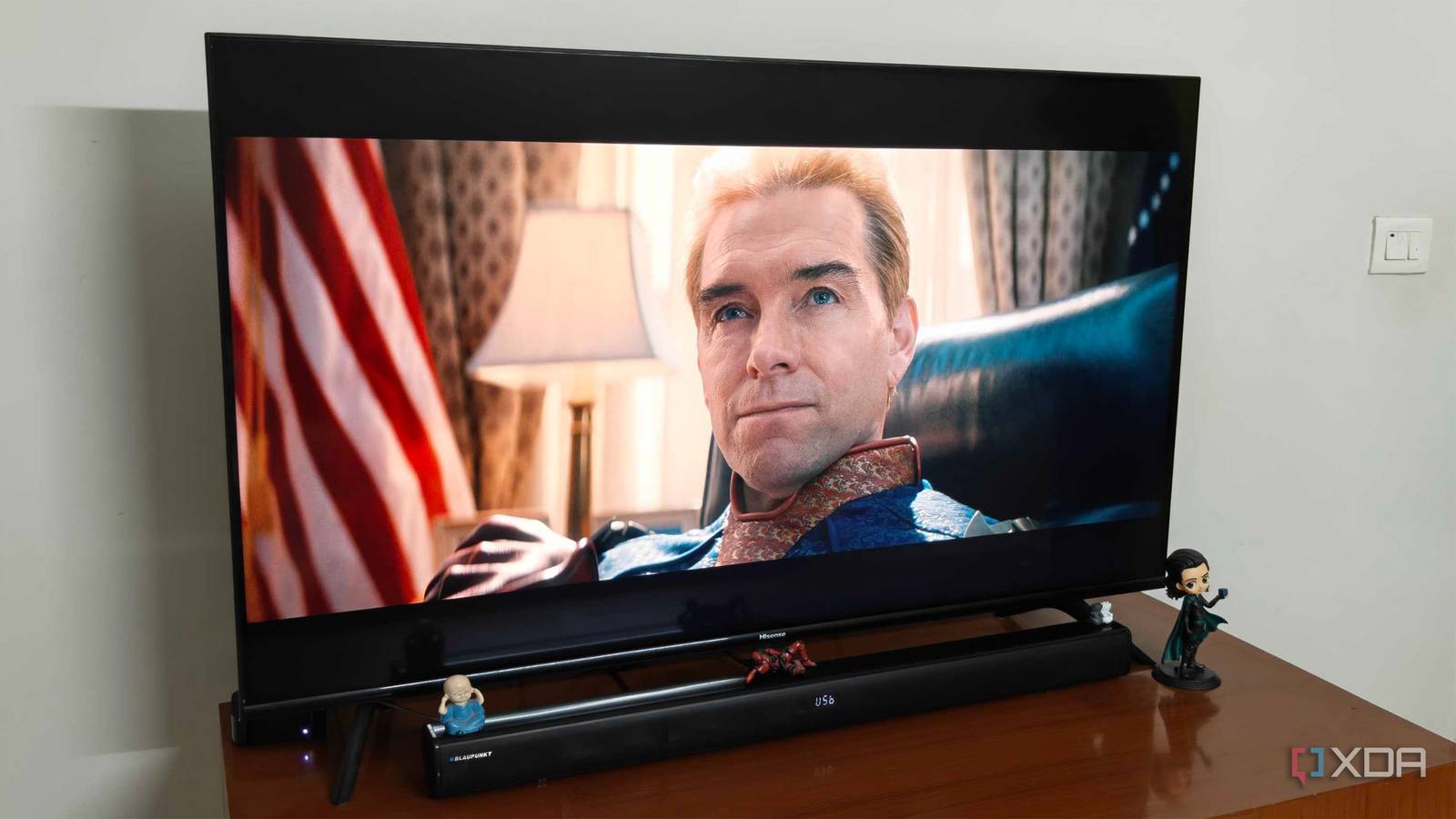
Motion smoothing (often called “Auto Motion Plus,” “TruMotion,” or “MotionFlow”) interpolates frames to make motion look unnaturally smooth, like a soap opera. It also introduces artifacts and input lag. Turn it off completely for movies and TV shows; keep it only for sports if you prefer the look. Sharpness is another offender. Many TVs apply artificial edge enhancement that creates halos around objects. Reduce sharpness to 0 or near 0—your TV will actually look sharper because natural detail is no longer obscured by processing. If you see ringing on text or edges, you’ve gone too far.
Step 6: Fine‑Tune HDR and Local Dimming
If your TV supports HDR (HDR10, Dolby Vision, HLG), you’ll need separate settings for HDR content. Switch to an HDR source and set the picture mode to “Cinema HDR” or “HDR Film.” Most HDR‑specific adjustments (brightness, contrast, color) should stay at default because the TV’s metadata handles peak luminance. However, you should still disable motion smoothing and set color temperature to warm. For TVs with local dimming, ensure it’s set to “High” or “Auto” to improve black levels and reduce blooming. Dynamic Tone Mapping can be left on unless you prefer a more reference‑accurate image.
Tips for the Best Results
- Use ISF modes if available: Many TVs have Cal 1 or Cal 2 modes (ISFcalibrated) that provide the most accurate starting point.
- Keep dynamic contrast and noise reduction off: These features sacrifice detail for an artificial pop.
- Revisit settings after a break: Your eyes adjust quickly. After a day or two, compare your custom settings to the factory defaults—you’ll likely see a huge difference in realism.
- Invest in a professional calibration: For the absolute best accuracy, hire a calibrator or use a calibration disc. But even the steps above will dramatically improve your picture for free.
- Don’t forget your source devices: Make sure your streaming box, Blu‑ray player, or game console outputs the correct signal (e.g., RGB Full vs Limited, 4:4:4 vs 4:2:0) to avoid crushed blacks or washed‑out colors.
Related Articles
- 10 Reasons Why 'The Craft' Remains the Ultimate Witch Movie After 30 Years
- Inside the Musk vs. Altman Trial: A Week One Breakdown
- Building an AI-Ready Infrastructure with SUSE: A Step-by-Step Guide
- 5 Critical Updates About VSTest Dropping Newtonsoft.Json
- Analyzing Internet Disruptions: A Step-by-Step Guide Using Q1 2026 Case Studies
- How to Build Your Second Brain in Claude Projects (A Step-by-Step Guide)
- 8 Key Insights into HCP Terraform Powered by Infragraph: Your Guide to Unified Infrastructure Visibility
- How to Enhance IVF Success with Next-Generation Technologies